![Logo - Copy-2.jpg]](https://help.accrets.com/hs-fs/hubfs/Logo%20-%20Copy-2.jpg?height=40&name=Logo%20-%20Copy-2.jpg)
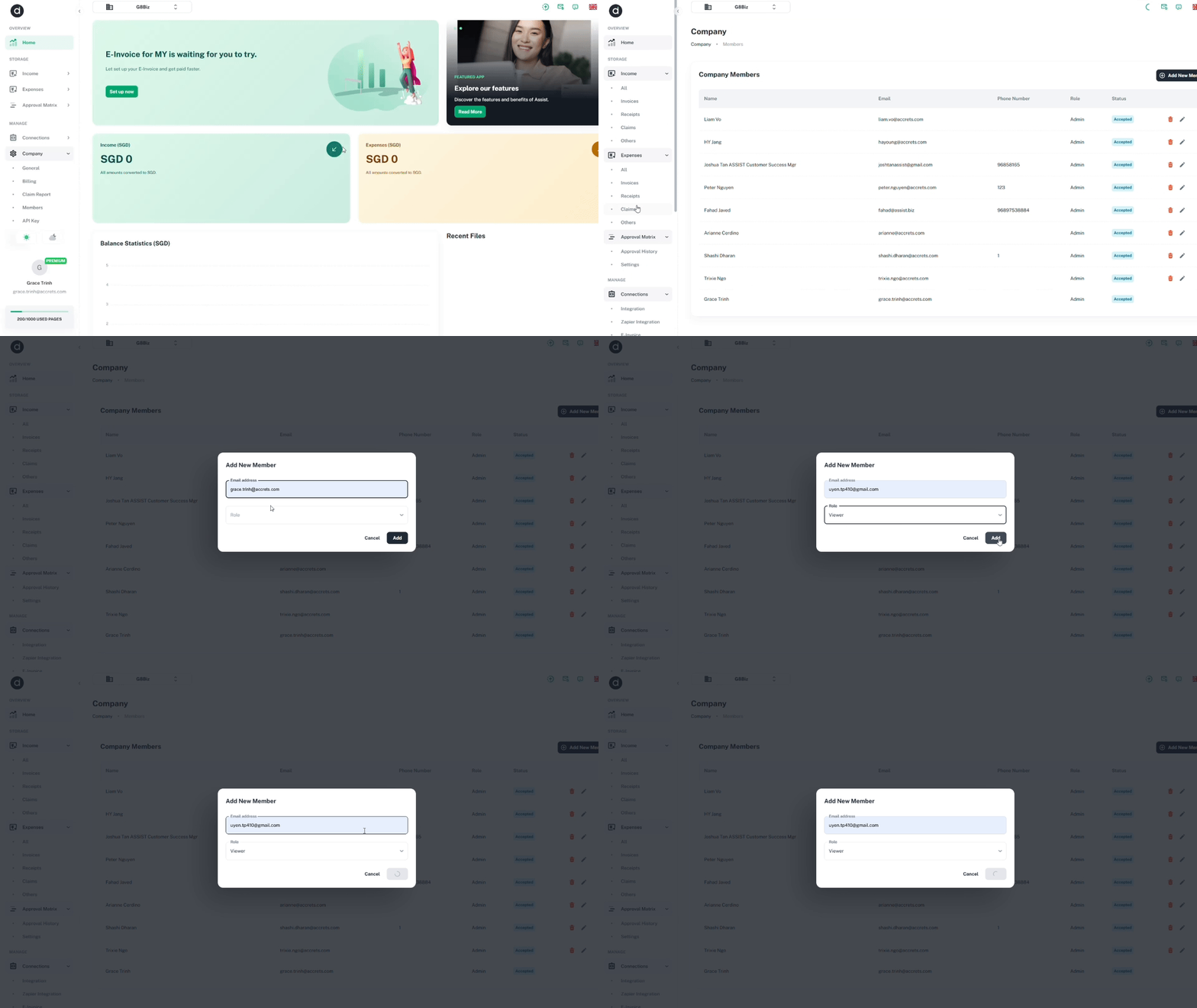
Follow these steps to invite team members to your organization:
1. Access Member Settings
From the left-hand navigation pane, select the Company section and click on Members.
2. Initiate Invitation
Once redirected to the user list, locate and click the Add New Member button in the upper-right corner of your screen.
3. Configure Member Details
In the pop-up window, enter the new member’s email address and assign their specific User Role from the dropdown menu.
4. Finalize
Click the Add button to send the invitation.
Important: The new member must click the link in their invitation email to verify their account and complete the onboarding process.